
Basic
The Windows 10 task scheduler is basically the first place to go to automate processes. A very common application is the use of batch scripts or Windows PowerShell scripts. Since the use of batch scripts is still very common, this tutorial describes including a batch script in Windows task scheduling.
The task scheduling
The first thing to do is to start the task scheduler. It can be opened regularly from the Windows Start menu. The short command is taskschd. Then you can see the option: “Create task” in the right action field.
If this menu is not displayed, you have to show it via the view. By the way, there are two variants here. One is “Create simple task” and the other is “Create task”. The first variant offers many more possibilities.
For the configuration, a new task is created now. Then you have to make the following settings:
- General: Set name, user, and privileges.
- Trigger: When should the task be executed (schedule, restart, logoff, …)
- Action: Specify the batch script to run as program start
- Conditions: Special settings (idle, energy saving mode..).
- Settings: What happens when the tasks fail, …
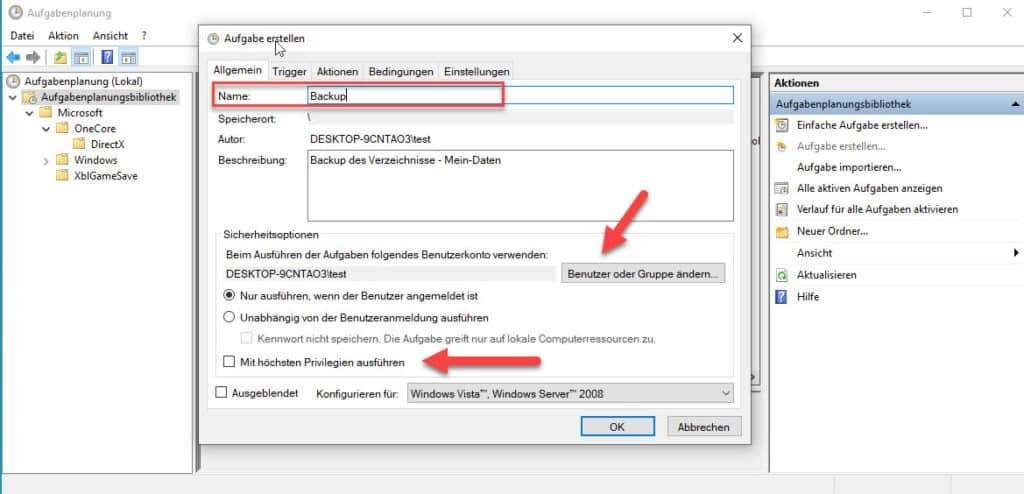
The first step is to specify a name and a description for the task. Here it is also possible to specify a special user for whom only the task should be executed. Additionally, there is an option to execute the task with the highest privileges.
This must be specified if administrative rights are required. This would be the case, for example, if you want to mount a virtual hard disk via a PowerShell script.
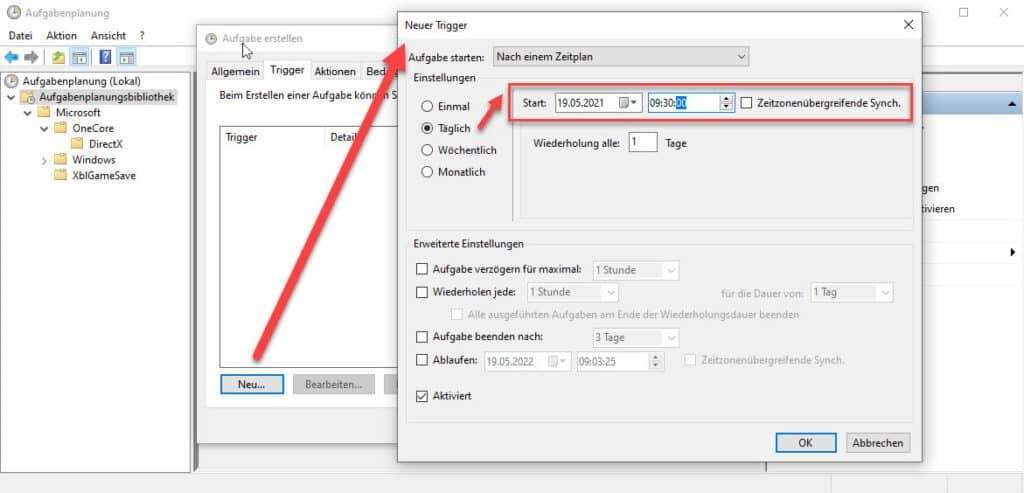
The next step is to specify when the task should be executed. This is called a trigger. There are different variants. For example, at startup, at logon, according to a schedule, etc. In this example, a schedule is used and the trigger is set so that the tasks should be executed daily at 09:30.
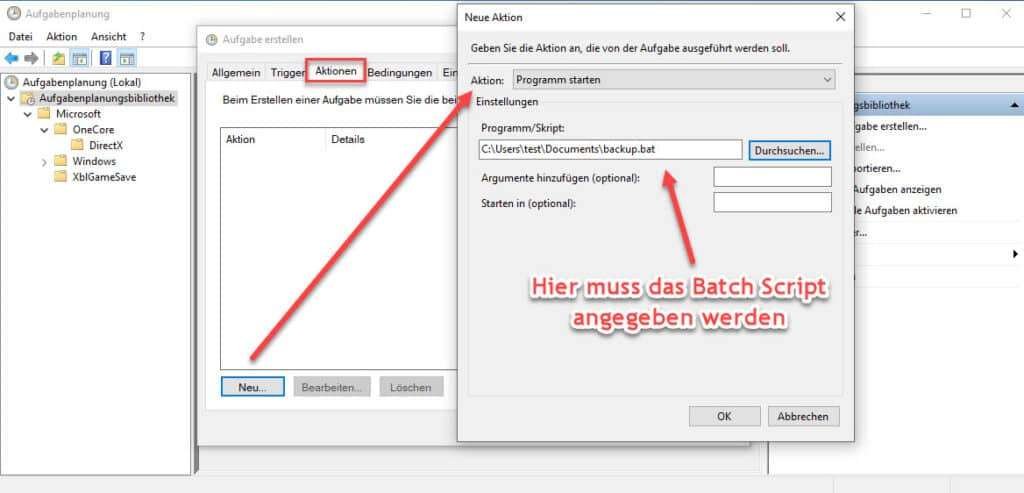
Subsequently, a new action is created via the action. Select “Start program” and enter the batch script with its path in the settings. The path can be selected directly via the “Browse” button.
The script used in this example looks as follows. It uses the Windows on-board program robocopy, which simply copies files from one directory to another. By the way, this tool is very useful to create backups of the system or to mirror data.
@echo off
“c:\Windows\System32\robocopy.exe” “c:\My Data” “E:\Backup My Documents” /E
For the last two options (conditions and settings), additional settings could now be made. In the following example, however, these are not relevant.
However, if there are special configurations involved, such as the script should only be executed when the PC is in network mode, then you should take a closer look at them.
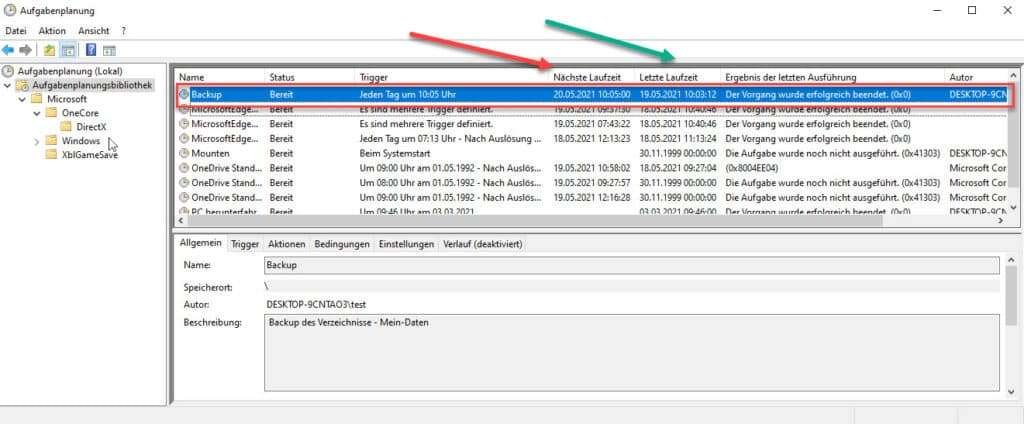
After completion, you can find the tasks directly in the central window of the task scheduler. There you can also check when the task was last executed and when the next scheduled execution should take place.


